November 12, 2026

10 minutes
You might start the day knowing what you need to accomplish. Then you open your email, check your calendar, and catch up on Teams or Slack. A customer needs an answer, a meeting has moved, and a conversation you haven’t read yet changes what you thought was due Friday.
Before getting to that work, you have to piece together what’s happened and decide what deserves your attention. And by the time you’ve done that, something else has changed.
Whether you’re leading a department in a large organization, running a small business, or working on your own, that can become a familiar cycle. The systems and approval processes differ depending on your role and your business, but the challenge of keeping track of work spread across all those systems is the same. So how do you get off that hamster wheel and spend more of your day doing the work you set out to do?
I think this is a practical place to start with AI. An AI chief of staff can bring approved information together and help you spot commitments and decide what to do next. Making that useful starts with being specific about the job you’re asking it to do.
Give the assistant a specific job
When I say “AI chief of staff,” I’m describing a way of working with an AI assistant, rather than a standard product with executive judgment. Its usefulness depends on the information it can access, the context you give it, and the boundaries around its work.
I’d start with a simple responsibility: help me understand what needs my attention today. Depending on what’s approved and supported, that could mean reviewing email and calendar events along with selected Teams or Slack conversations. You don’t have to connect everything at once. An approved inbox and calendar may be enough to test the approach.
That’s the starting point I discussed in Why AI Expectations Outpace Business Results: decide what you want to improve before choosing the technology. Here, you might want to spend less time assembling your daily plan or catching commitments that would otherwise slip through. Those goals help you evaluate whether the briefing is making a difference.
Make the morning briefing useful
With that job defined, the morning briefing becomes easier to shape. You’re asking the assistant to recommend where to focus, explain why, and point you back to the information behind each recommendation. That gives you something you can check and use to plan your day.
Let’s say you’re managing several client projects. A useful briefing might bring these items to your attention:
- A client decision you need to make before noon because the delivery team can’t proceed without it.
- Preparation for a 2 p.m. meeting, with a link to the latest discussion and the question that’s still unresolved.
- A response you promised yesterday that appears to be outstanding, with a reminder to check whether you handled it elsewhere.
A useful briefing explains what needs your attention and why.
For example, “This blocks tomorrow’s implementation” tells you why something deserves attention. An unexplained high-priority label leaves you to figure that out yourself. Include a direct link to the email, event, or conversation so you can verify the details without starting another search.
To make those recommendations relevant, give the assistant some context about your role, current objectives, important relationships, and deadlines. You might say, “Prioritize decisions blocking delivery today, and separate requests for my approval from updates I only need to know about.” That tells it how to sort the information it finds.
You also need to know what it actually reviewed. Ask it to identify the sources and time period covered, along with anything it couldn’t access. If a channel is missing or the information is out of date, you need to see that gap before relying on the briefing to plan your day.
Close the day with a clearer handoff to tomorrow
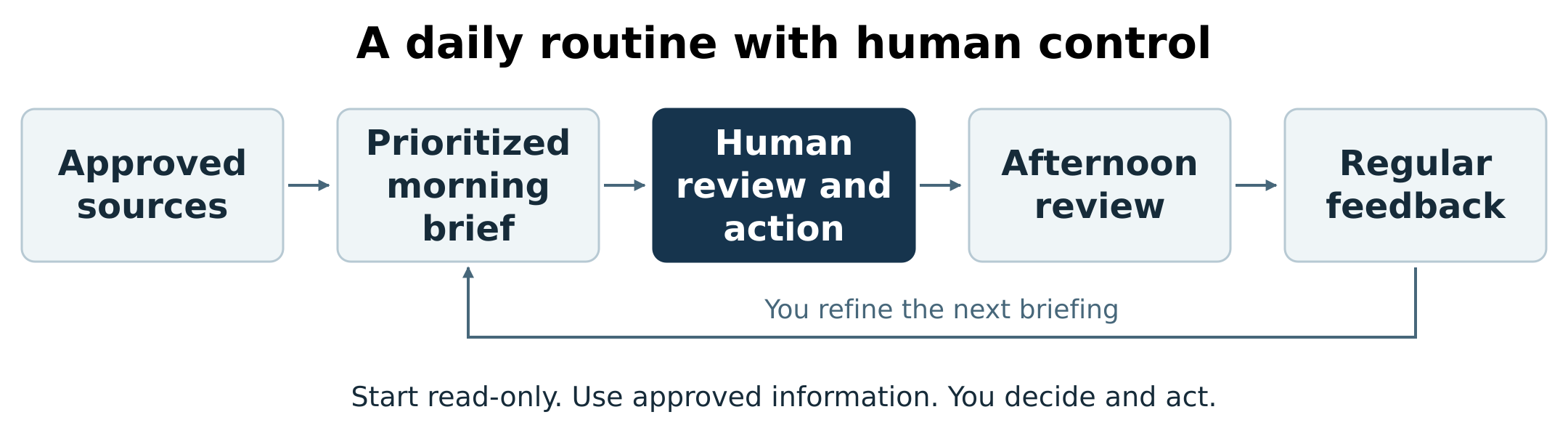
Of course, the priorities you start with won’t necessarily be the priorities you end with. That’s where an afternoon wrap-up can help you understand what’s changed and what you need to carry into tomorrow.
Using the same example, you may have made the client decision before noon, while the afternoon meeting created a new follow-up. Ask the assistant to bring that movement into focus:
- What appears to be finished?
- What’s still open?
- What new requests could affect tomorrow?
It should make clear which updates are confirmed by the sources and which are assumptions. Someone saying “I’ll take care of it” tells you they’ve made a commitment; you still need evidence that the work was completed.
That review gives you a chance to decide what to finish, what to defer, and where you need clarification. You’ll also have to fill in gaps when work happens in a phone call or a system the assistant can’t access, using information you’re authorized to provide. The more clearly you understand those limits, the easier it is to judge when you have enough information to act.
Start with visibility and keep control of actions
Both of these routines can begin with the assistant reading and recommending while you make the decisions. That’s why I’d start with a read-only workflow and leave sending messages, changing appointments, deleting email, and updating business records outside its initial scope.
Read-only access still needs approval.
Your inbox may contain confidential client information, employee details, or material covered by contracts and industry requirements. Your employer may have rules about which AI services can process that information, how much they can access, and how long they can retain it.
Before connecting anything, work through four practical checks with the people responsible for your systems and data:
- Confirm the approved tool and account. Being able to sign in and connect to your mailbox doesn’t establish permission to use it that way.
- Define the information it may use. Specify which sources are included and which information must stay out.
- Review the data terms. Check the vendor’s relevant terms, retention controls, and whether the service uses your data for model training.
- Limit the permissions. If a connection requests more than the workflow needs, resolve that with IT or security before proceeding.
Work data should also stay out of personal AI accounts unless that use is explicitly authorized.
Once access is in place, keep checking the recommendations against their sources. A briefing can read well and still misinterpret a deadline or commitment. Reviewing those details protects your decisions and also shows you where the assistant’s instructions need to become more specific.
Hold a regular one-on-one with the assistant
As you use the briefings, you’ll start to notice patterns in what helps and what needs correcting. Rather than dealing with each issue in isolation, set aside time weekly or every other week to review a few examples. Think of it as a regular one-on-one where you explain what the assistant understood, what it missed, and how you’d like it to handle similar situations.
The feedback needs to be concrete enough to change the next result. “Be more helpful” doesn’t explain what’s missing, while corrections like these give it something specific to apply:
- “You treated every message from this client as urgent. Escalate items that affect an agreed deadline or require my decision.”
- “You missed a commitment because it was phrased as ‘I’ll send that tomorrow.’ Include commitments I make, not just requests addressed to me.”
- “Keep the daily briefing to three recommended priorities, and put routine updates in a separate section.”
Turn those corrections into explicit instructions, then verify that the product saves and applies them. Feedback in one conversation may not carry into another session or workflow. You’ll also want to revisit the instructions as your responsibilities, projects, or company policies change.
Over time, compare the experience with what you set out to improve. Are you spending less time planning and reviewing? Are important commitments still being missed, or are too many routine items being escalated? Include the time you spend correcting the assistant in that assessment. If the review takes more effort than it saves, that’s a reason to narrow the scope or adjust the approach before adding more.
Expand only when the next use case earns its place
If the daily routine proves useful, you may see other places where the same approach could help. Approved CRM context could connect an upcoming customer meeting with an open opportunity, for example. Access to approved materials could support a more detailed meeting brief or a proposal draft.
Each addition brings its own questions about access, accuracy, and responsibility. With a proposal, you’d need to know which pricing is current, what scope has been approved, and who will review the commitments before anything is sent. Those details need to be settled before the workflow expands.
It helps to keep reading, drafting, and taking action separately. Permission to summarize an opportunity doesn’t give the assistant permission to change its stage, quote a price, or email the customer. As you add capabilities, define the approvals they need and how you’ll inspect and correct the results.
You can work toward that gradually. Start with approved sources and a morning briefing that helps you choose where to focus, then use the afternoon wrap-up and regular check-ins to see whether the routine is making work easier to manage. That gives you evidence to decide what should come next.
If your organization needs help defining that starting point, Diagram’s AI readiness and strategy work can help you connect the outcome you’re pursuing with the information, permissions, and oversight needed to test it.
Frequently asked questions
Will my employer let me use AI to access my work email?
Your employer may allow AI access to work email, limit it to an approved service, or prohibit it. The answer depends on company policy, the tool and account you’re using, the information involved, and any contractual or security requirements. Being able to connect your mailbox doesn’t mean you’re authorized to do so.
Start by asking IT or security whether an approved service supports the use you have in mind, which mailbox permissions are allowed, and what information must be excluded. Confirm retention and model-training terms for that specific service and plan. Read-only access reduces the risk of unwanted changes, but the information is still being processed. If access isn’t approved, don’t work around the restriction by forwarding email to a personal account or copying it into another AI tool.
What does an AI chief of staff actually do?
An AI chief of staff helps turn approved work information into priorities, commitments, meeting preparation, and follow-up recommendations. You might start with a morning briefing that explains what needs attention and an afternoon review of what’s still open, so you have a clearer view of what to do next.
The term describes a use case rather than a fixed set of capabilities. The assistant needs relevant context, clear instructions, and access to supported sources to do that work. It may still misunderstand a conversation or miss information held elsewhere, so you remain responsible for judging priorities, checking consequential details, and deciding what action to take.
Can one AI assistant work with email, calendars, Teams, and Slack?
Some AI products support multiple work applications, but you need to verify that a particular tool can access the sources your organization allows it to use. Availability depends on the product, subscription, connector capabilities, administrator settings, and permissions. Even a supported connection may cover only certain accounts, channels, message types, or date ranges.
Before choosing a tool, identify the sources your workflow actually needs and test whether it can retrieve current information and link back to it. Ask the assistant to disclose gaps in its coverage, so you know what still needs checking. A narrower briefing based on reliable, approved sources may be a more useful starting point than broad access you can’t confidently evaluate.
How do I start using an AI chief of staff without losing control?
Begin with a limited, approved, read-only workflow. Specify the information the assistant may review, how it should prioritize requests, and a short briefing format with source links. Keep sending messages, changing meetings, and updating records outside that initial scope so you can review its recommendations before acting.
Then use a weekly or biweekly check-in to work through missed commitments, unnecessary escalations, and misunderstood priorities. Turn that feedback into instructions and verify they’re being applied. Compare the benefit with the effort required to review and correct the work before adding drafting or action capabilities. Expansion should depend on useful results and the necessary permissions and approvals, rather than an assumption that more access will make the assistant better.
Related Articles:
Enterprise AI Has a Context Problem
